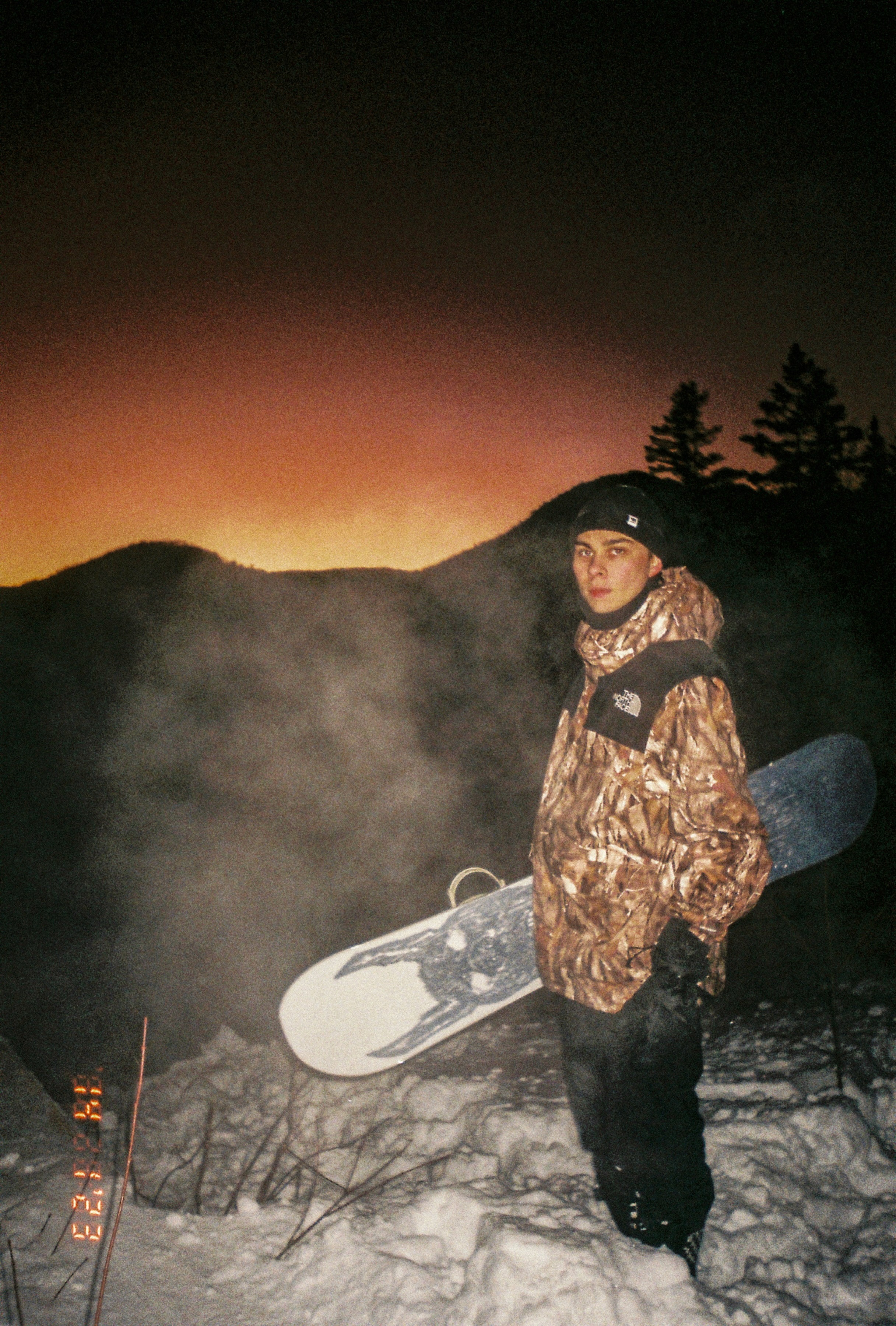
Raw camera files require thoughtful editing transforming them into compelling brand assets. Adventure and lifestyle brands with consistent visual aesthetics stand apart through distinctive editing styles. A Patagonia image looks like Patagonia. A Red Bull image looks like Red Bull. This consistency comes from refined editing workflows producing images aligned with brand identity.
This resource explores professional photo editing approaches for adventure content creators, from initial import through final publication.
Learn:
✔️ Lightroom organization and workflow systems
✔️ Color grading approaches establishing brand visual identity
✔️ Batch editing for consistency at scale
✔️ Video editing integration with Adobe Creative Suite
✔️ Delivery optimization for different platforms
✔️ Building editing presets establishing brand style
Building Your Photo Organization and Workflow Foundation
Professional photo editing begins before opening Lightroom—it starts with organized file systems and clear workflow architecture.
File Organization and Naming Conventions
Establish consistent file naming and folder structure:
Shoot Organization: Create folders by date, location, project, or event. This structure should enable quick retrieval months later. Include descriptive metadata allowing search-based discovery.
Raw vs. Edited: Maintain separate folders for raw files (unedited) and edited versions. This separation preserves originals while allowing non-destructive editing experimentation.
Naming Conventions: Use descriptive naming—“2024-11-18_Location_Subject_Photographer.raw” provides context without excessive length. Consistent naming across team enables seamless collaboration.
Backup Systems: Maintain redundant backups of raw files. Use cloud storage (Google Drive, Dropbox, AWS) plus external drives ensuring file security against hardware failures.
Lightroom Workspace and Catalog Structure
Set up Lightroom for efficient organization:
Collections Over Folders: Use Lightroom’s collection system organizing images by project, client, or theme. Collections allow flexible organization without moving files physically.
Smart Collections: Create smart collections using criteria (ratings, flags, keywords) automatically populating with matching images. These enable efficient batch operations.
Flagging and Rating System: Develop consistent flagging (picks, rejects, maybe) and rating system (1-5 stars) helping sort through large photo sets. First pass: flag images. Second pass: rate quality. Third pass: edit top-rated images.
Keyword Tagging: Add keywords during import (location, subject, conditions, keywords) enabling sophisticated searching. Consistent keywords across shoots enable discovering patterns across projects.
Color Grading and Brand Visual Identity
Establishing Distinctive Color Palettes
Create consistent brand color palettes:
Primary Color Story: Select 2-3 colors appearing consistently across your content. Perhaps warm earth tones, cool blues, or vibrant accent colors. This palette becomes recognizable as your brand.
Exposure and Shadows: Adjust exposure and shadow/highlight balance creating distinctive tonal range. Perhaps bright, airy aesthetic versus moody, saturated approach. This tonal signature becomes recognizable as your work.
Saturation and Vibrance: Decide saturation philosophy. Oversaturated images feel artificial; desaturated images feel muted. Find your brand’s saturation sweet spot.
Temperature Consistency: White balance affects image mood significantly. Warm images feel inviting; cool images feel mysterious. Maintain consistent temperature philosophy creating cohesive aesthetic.
Building Editing Presets
Create and use Lightroom presets for consistency:
Foundation Presets: Build presets addressing common scenarios (bright daylight, overcast conditions, sunset, night) providing starting points for quick editing.
Brand Presets: Create presets defining your brand aesthetic—specific combinations of exposure, contrast, saturation, temperature, and highlights creating your signature look.
Scene-Specific Presets: Develop presets for specific scenarios (landscape photography, portraits, action shots, architectural) enabling faster editing while maintaining quality.
Preset Naming: Use clear naming conventions identifying preset purpose and intensity. “BrandAesthetic_Warm_Medium” communicates preset intent more effectively than generic names.
Advanced Editing Techniques
Refine your editing beyond basic adjustments:
Spot Removal and Healing: Remove distracting elements, dust spots, or unwanted background elements. These subtle adjustments dramatically improve image quality.
Graduated Filters: Selectively adjust specific image areas—brighten foreground, darken sky, warm earth tones while cooling sky—creating balanced exposures and focused attention.
Local Adjustments: Use Lightroom’s adjustment brushes targeting specific areas. Brighten an athlete’s face, enhance water reflections, or intensify specific color ranges.
Dehaze and Clarity: Judiciously use dehaze (removing atmospheric haze) and clarity (enhancing micro-contrast) to enhance details. Excessive clarity creates artificial, over-processed appearance; moderate clarity enhances impact.
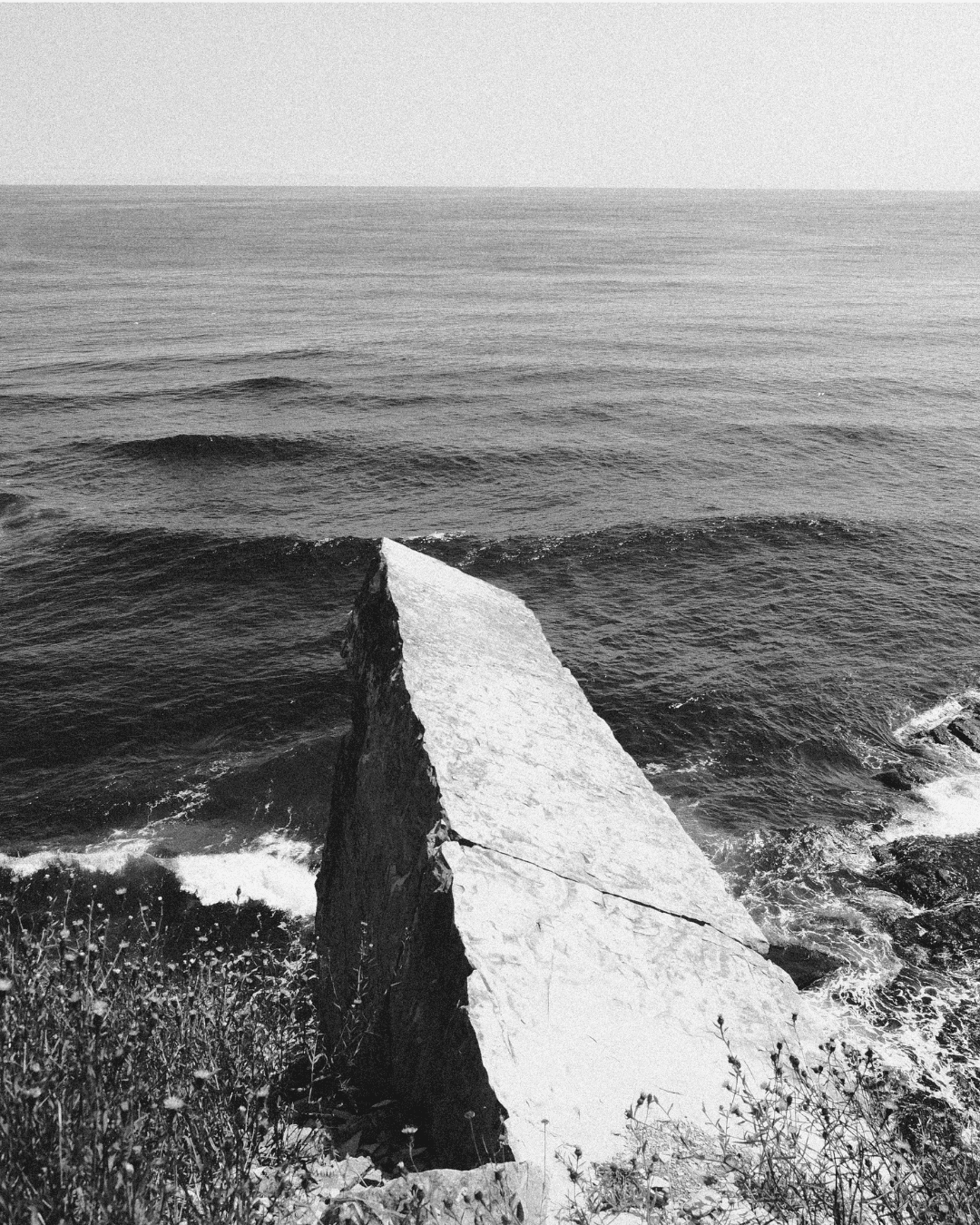
Batch Editing and Efficiency at Scale
Synchronizing Edits Across Image Sets
Efficiently apply consistent editing to multiple images:
Before/After Synchronization: Edit one image thoroughly, then synchronize settings across similar images from same shoot. Adjust individual images as needed while maintaining consistency.
Camera Calibration: Apply consistent camera calibration across camera models. If shooting with multiple camera bodies, calibration ensures color consistency across cameras.
Copy/Paste Settings: Copy editing settings from one image, then paste to multiple other images. This approach enables rapid consistency while respecting individual image differences.
Previous Settings: Lightroom remembers previous editing settings, enabling quick application to similar shots. Load previous settings then adjust as needed.
Creating Efficient Editing Workflows
Develop systems enabling editing at scale:
Culling Session: First, narrow image set to edit-worthy candidates. Discard obvious rejects saving editing time on lower-quality images.
Batch Organization: Organize remaining images by similarity—light conditions, composition, subject. Edit similar images together, applying consistent settings.
Editing Queue: Create editing queue working through methodically rather than randomly jumping between images. This maintains consistency and prevents task-switching fatigue.
Final Review: After batch editing, review full set identifying images requiring individual adjustments. Most images receive preset + minor tweaks; few require extensive customization.
Team Editing Consistency
For teams with multiple editors:
Editing Guidelines Document: Document your brand’s editing philosophy, color preferences, and technical standards. Provide this to all team members ensuring consistency.
Preset Sharing: Share editing presets across team ensuring everyone begins from same starting point.
Review Process: Implement review process where lead editor approves edited images before publication. This quality gate ensures brand consistency.
Regular Sync: Schedule regular team editing sessions reviewing work together, discussing preferences, and aligning on standards.
Video Editing Integration and Multi-Format Optimization
Premiere Pro Workflow for Content Integration
Integrate video editing into photo-centric workflow:
Asset Organization: Organize video clips using same folder structure as photos. This enables efficient multi-format project management.
Color Matching: Apply color grading matching still photography aesthetic. Premiere Pro’s Lumetri panels enable applying similar color treatment to video ensuring visual consistency.
Audio Treatment: Professional audio dramatically elevates video content. Add ambient sound, music, and intentional sound effects creating immersive experience.
Expedition: Export video at appropriate specifications for platform—various bitrate/resolution combinations for YouTube, Instagram, TikTok, etc. Different platforms optimize for different specs.
Platform-Specific Optimization
Optimize content delivery for different platforms:
Resolution and Aspect Ratios: Export full-resolution versions plus platform-specific variations (1080p HD, 4K where applicable; 16:9 landscape, 9:16 vertical for mobile).
Color Space: Export ProRes or similar high-quality formats for archival; export H.264 for distribution. Different platforms require different specifications.
Metadata: Include EXIF data (for photos) or title/description metadata ensuring proper crediting and searchability.
File Sizing: Compress files appropriately—large files slow upload/download; over-compressed files lose quality. Find balance for each platform.
H3: Archive and Version Control
Maintain systematic approach to final files:
Master Files: Store master exported files (full quality, all metadata) for archival and future repurposing.
Platform Versions: Maintain platform-specific exports for quick re-publication without re-exporting.
Edit History: Keep edit project files allowing future modification without re-editing from raw.
Backup Strategy: Maintain redundant backups of final exported files alongside raw files and edit projects.